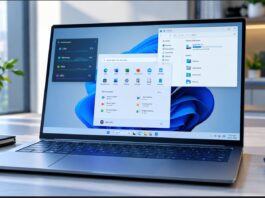


For years, searching in Windows was primarily about finding things: locating a lost document, launching an application, or jumping into deep sub-menus within the Settings app. Microsoft is shifting that dynamic entirely with a major redesign rolling out to early testers.
Instead of acting merely as a directory, the reimagined search bar turns into an active workspace assistant that executes tasks on the spot without opening secondary windows.

  ┌──────────────────────────────────────────────────────────┐
  │ 🔍  switch to dark mode                                  │
  ├──────────────────────────────────────────────────────────┤
  │ ⚡ Inline Action: Toggled Dark Mode (System-wide)         │
  ├──────────────────────────────────────────────────────────┤
  │ 📂 Files & Documents                                     │
  │ ⚙️ System Settings                                        │
  └──────────────────────────────────────────────────────────┘
Rebuilt on WinUI 3 for Unmatched Speed
At the core of this overhaul is a complete under-the-hood engine swap to WinUI 3. Users familiar with the previous search interface know it could occasionally feel heavy or sluggish. The updated interface delivers a lighter footprint, faster responsiveness, and a streamlined single-column layout that makes browsing results intuitive and effortless.
Alongside the design refresh, natural language comprehension receives a noticeable boost. Microsoft has tuned search algorithms to better handle typos, slang, and contextual synonyms, reducing those annoying moments when a minor spelling mistake yields zero results.
Complete Everyday Chores with Inline Actions
The most impactful feature of this update is inline actions. Rather than clicking a result and waiting for the full Settings app to load, you can now type everyday commands directly into the search field and complete them in place:
Quick Toggles: Instantly switch to dark mode, enable the night light, or turn Bluetooth on and off.
Hardware Adjustments: Mute audio, tweak screen brightness, or adjust microphone levels on the fly.
Window & Space Management: Minimize clutter or trigger window-snapping layouts straight from your keyboard.
Connected Devices (Coming Soon): Send quick text messages through paired smartphones via Phone Link without launching the companion app.
How to Enable and Try the New Experience
Microsoft is currently testing this experience with select Insiders. Because this feature is currently localized to English, here is how eligible testers can activate it:
Verify your PC is updated to the latest preview update.
Navigate to Settings > Windows Update > Windows Insider Program > Feature flags.
Locate the New Windows Search Experience flag and toggle it on.
Restart your device. A full system reboot is strictly required before the changes take effect in the UI.
This shift marks an exciting step toward reducing friction in Windows 11, turning the taskbar search bar from a simple finder tool into a central control center for everyday computing tasks.
Stay tuned to TheWinCentral.com for further details related to Microsoft and Windows news.
For the latest rollout updates and troubleshooting guides, follow our Windows 11 coverage as more details emerge