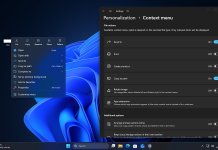
Microsoft is continuing to modernize core Windows 11 tools with fresh improvements to Task Manager, Run dialog, and File Explorer across the latest Insider Preview releases. The new updates arrive through Experimental Build 28020.1921 (26H1) and Build 26300.8346, bringing smarter diagnostics, a redesigned Run interface, and refinements to File Explorer reliability.
These updates are part of Microsoft’s broader Windows quality initiative focused on improving responsiveness, usability, and modern UI consistency across legacy Windows components.
Task Manager Gains AI Hardware Monitoring in Windows 11
One of the most notable additions arrives in Task Manager, which now provides deeper insight into AI-powered hardware performance.
Microsoft is expanding Task Manager to better support systems equipped with NPUs (Neural Processing Units) — dedicated AI chips increasingly found in newer Windows PCs.
New NPU Monitoring Columns
Windows 11 now adds optional columns inside Task Manager that help users track NPU activity.
New columns include:
- NPU usage
- NPU Engine activity
- NPU Dedicated Memory
- NPU Shared Memory
These appear across:
- Processes page
- Users page
- Details page
Users can enable these fields by right-clicking column headers inside Task Manager. This makes it easier to monitor AI workloads running locally on Windows devices.
Better AI Visibility on Performance Page
Task Manager now recognizes neural engines connected to GPUs.
This means the Performance tab can display AI-related hardware activity more clearly, giving users a better understanding of how AI tasks impact system resources.
As Microsoft expands Copilot+ PC features and on-device AI, Task Manager is evolving into a more advanced hardware monitoring tool.
New Isolation Column for Security Awareness
Microsoft is also introducing a new Isolation column.
This allows users to identify which apps are running inside an AppContainer, improving transparency around sandboxed processes.
Benefits include:
- Better visibility into secure processes
- Easier identification of isolated apps
- Improved understanding of security boundaries
This change particularly benefits advanced users and developers monitoring process behavior.
Accuracy Improvements in Task Manager
Build 28020.1921 also fixes an issue where CPU speed readings could display unrealistic values after virtual machines resumed from hibernation.
This improves reliability for:
- Virtual environments
- Power users
- IT administrators
- Developers using VMs
Task Manager now delivers more consistent performance data.
Windows 11 Run Dialog Gets a Modern Redesign
Microsoft is finally refreshing one of Windows’ oldest tools — the Run dialog.
The redesigned Run experience appears in Build 26300.8346 and introduces a cleaner interface aligned with modern Windows 11 visuals.
Modern Run Dialog Design
The new Run dialog adopts:
- Rounded Windows 11 design language
- Cleaner spacing
- Improved visual consistency
- Updated typography
- Better scaling across displays
This redesign helps modernize a feature that has remained largely unchanged for years.
Optional Toggle for New Run Experience
Microsoft is making the updated Run dialog optional during testing.
Users can enable it through:
Settings → System → Advanced → New Run Dialog
This allows users to switch between the classic and modern experience while Microsoft gathers feedback.
Improved Integration with Windows Shell
The redesigned Run dialog appears to be part of Microsoft’s broader shell modernization effort.
The goal is to make legacy Windows tools feel more consistent with:
- Start menu
- Taskbar
- Settings app
- File Explorer
- System dialogs
This creates a more unified visual experience across Windows 11.
File Explorer Improvements Continue Across Insider Builds
Microsoft continues investing heavily in File Explorer improvements.
Recent Insider builds focus on stability, consistency, and usability rather than complete redesigns.
File Explorer Reliability Improvements
Microsoft has introduced ongoing fixes to improve File Explorer responsiveness.
Recent improvements include:
- Reduced explorer.exe crashes
- Better folder navigation consistency
- Improved search responsiveness
- Faster context menu rendering
- Reduced UI freezing
These changes help File Explorer feel smoother during everyday use.
Better Context Menu Behavior
Windows 11 continues refining the modern context menu inside File Explorer.
Recent updates improve how executable files display actions.
For supported file types such as:
- .exe
- .bat
- .cmd
Windows now displays associated app icons directly inside the Open option.
This makes file actions easier to recognize visually.
Improved Dark Mode Consistency
Microsoft has also continued polishing File Explorer’s dark mode experience.
Enhancements include:
- Better Folder Options compatibility
- Improved dialog rendering
- More consistent theme application
- Cleaner visual transitions
These changes make File Explorer feel more aligned with Windows 11’s overall design language.
Explorer.exe Stability Improvements
Because File Explorer powers large portions of Windows shell behavior, explorer.exe reliability fixes affect multiple areas.
Benefits include:
- Faster desktop responsiveness
- Reduced Taskbar glitches
- Improved startup readiness
- Better shell performance
- Reduced random refresh behavior
These backend improvements improve overall system smoothness.
Why These Windows 11 Improvements Matter
Task Manager, Run dialog, and File Explorer are core parts of Windows used daily by millions of users.
While these updates may appear incremental, they show Microsoft’s broader shift toward refining Windows rather than simply adding new features.
Key improvements include:
- Better AI hardware visibility
- Modernized legacy tools
- Faster File Explorer performance
- Improved process transparency
- Better shell consistency
These updates help Windows 11 feel more polished and future-ready.
Final Thoughts
Microsoft’s latest Insider builds reveal continued investment in core Windows tools.
Task Manager is becoming smarter with AI monitoring, the Run dialog is finally receiving a visual refresh, and File Explorer continues gaining performance and stability improvements.
Together, these changes improve the everyday Windows 11 experience while helping prepare the OS for future AI-focused hardware and workflows.
Keep yourself updated with all latest news about Windows 11 by reading our full coverage here.
Please follow us on our Facebook page and X account for all latest and breaking Windows and Microsoft related news.